
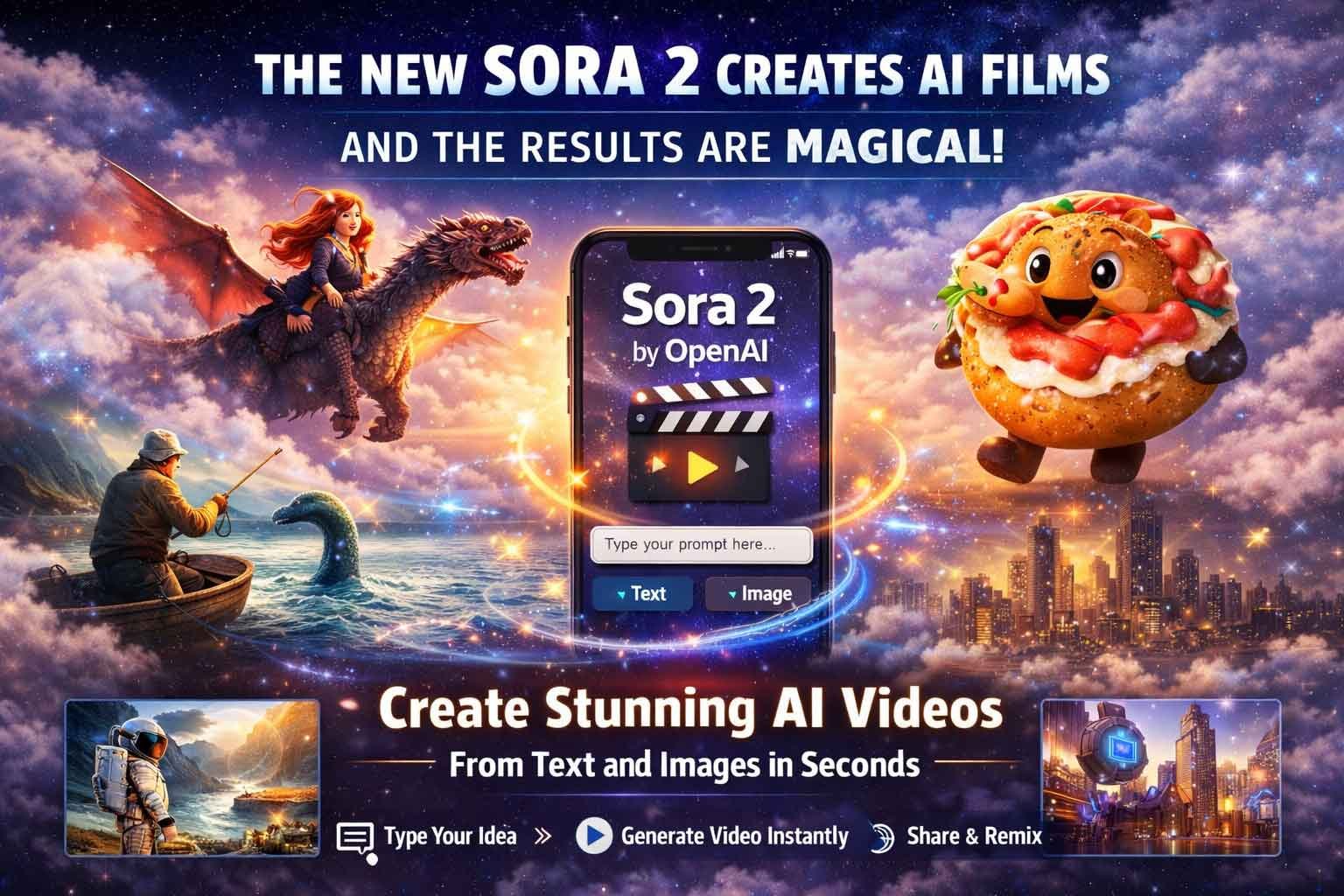
Sora 2 by OpenAI: Complete Guide to Creating Stunning AI Videos from Text and Images in 2026
How OpenAI’s Revolutionary AI Video Generator Transforms Text Prompts into Professional-Quality Videos in Seconds
The landscape of AI-generated video content has evolved dramatically, and OpenAI’s Sora 2 stands at the forefront of this revolution. This comprehensive guide explores how to create professional AI videos from text descriptions, animate static images, and leverage the power of text-to-video AI technology in 2026.
What is Sora 2? Understanding OpenAI’s AI Video Generation Technology
Sora 2 represents the next generation of OpenAI’s groundbreaking text-to-video AI model. Unlike basic video creation tools, Sora 2 uses advanced machine learning algorithms to generate high-quality, photorealistic videos from simple text descriptions or static images—all in a matter of seconds.
Key Features of Sora 2 AI Video Generator
- Text-to-video generation: Transform written descriptions into dynamic video content
- Image-to-video animation: Bring still photographs to life with AI-powered motion
- Automatic sound design: AI-generated sound effects and dialogue matching
- Multiple visual styles: From photorealistic rendering to animated sequences and surreal artistic effects
- Professional video formats: Up to 10-second clips in 9:16 vertical (mobile-optimized) or landscape aspect ratios
- Video remixing capabilities: Edit and transform existing AI-generated videos
- Social sharing platform: Built-in community for discovering and sharing AI video creations
Global Availability: Where Can You Access Sora 2 in 2026?
As of February 2026, Sora 2 availability has expanded significantly:
| Category | Details |
|---|---|
| Availability | United States, Canada, United Kingdom, European Union countries, Australia |
| Mobile Platforms | iOS app (iPhone & iPad), Android app (launched in late 2025) |
| Web Access | Fully web-based platform accessible from any modern browser |
Note: Availability may vary by region. Check OpenAI’s official website for the latest rollout information.
How to Create AI Videos with Sora 2: Step-by-Step Tutorial for Beginners
Getting Started with Sora 2
| Step | Instructions |
|---|---|
| Step 1 Download & Install |
iOS: Open the Apple App Store → Search for Sora by OpenAI → Download and launch the app.
Android: Visit the Google Play Store → Search for Sora AI Video Generator → Install and open the app. Web: Access the official Sora website from any modern browser. No download required. |
| Step 2 Account Sign-In |
Sign in using your existing ChatGPT credentials or create a new OpenAI account using your email address.
Enter your invitation code if available (access requirements may vary). Enable push notifications to receive alerts for new features and video completion. |
| Step 3 Profile Setup |
Complete your Sora profile by optionally creating a Cameo test video.
Configure account preferences and privacy controls. Set default video generation options and customize your creator profile for community sharing. |
Advanced Video Creation Techniques with Sora 2
Creating Videos from Text Prompts: Best Practices for 2026
How to write effective AI video prompts:
- Be specific and descriptive: Instead of “a dog running,” try “a golden retriever puppy running through a sunlit meadow with butterflies”
- Include visual style preferences: Specify “photorealistic,” “animated cartoon style,” “cinematic,” or “watercolor painting effect”
- Add motion details: Describe camera movements like “slow zoom,” “aerial view,” or “tracking shot”
- Specify mood and atmosphere: Include lighting conditions, weather, time of day, and emotional tone
Example text-to-video prompt:
“A majestic eagle soaring over snow-capped mountains at sunset, cinematic 4K quality, dramatic golden hour lighting, slow-motion wing movements”
| Platform | Step-by-Step Video Creation |
|---|---|
| Mobile App | Tap the plus (+) icon in the bottom toolbar.
Enter a detailed text description in the prompt field. Select video duration (up to 10 seconds). Choose an aspect ratio: 9:16 (vertical), 16:9 (landscape), or 1:1 (square). Tap Generate and wait approximately 10–30 seconds for AI processing. |
| Web Platform | Click the Create New Video button on the main dashboard.
Type your text prompt into the video generation box. Open the Settings icon to customize:
Click the Generate button or arrow icon to submit your request. |
Animating Static Images: How to Turn Photos into AI Videos
One of Sora 2’s most powerful features is its ability to transform still images into dynamic video content.
Step-by-step image-to-video process:
- Select the image upload option: Click the photo icon in the prompt interface
- Upload your image: Choose from your device’s photo library or cloud storage
- Add motion instructions: Describe how you want the image to animate
- Generate the video: Sora 2 will analyze the image and create realistic motion
Important limitations to note:
- Photorealistic images of identifiable people may be blocked due to content policy restrictions
- Focus on landscapes, animals, objects, and illustrated characters for best results
- Ensure you have rights to any images you upload
Successful image animation example:
- Original image: A raven perched near London Bridge
- Animation prompt: “Make the raven say ‘Nevermore,’ then fly away into the sky”
- Result: 10-second video with the bird speaking (AI-generated dialogue) and flying over the bridge
Exploring and Remixing AI-Generated Videos in the Sora Community
Discovering Trending AI Videos
| Platform | Exploration & Discovery Features |
|---|---|
| Mobile App | Tap the Search icon in the bottom navigation bar.
Browse featured creators and trending AI-generated videos. Swipe through video thumbnails to preview content quickly. Tap any video to watch it in full-screen mode and view the original prompt used to generate it. |
| Web Platform | Click the Explore or Search icon in the left sidebar.
Hover over video thumbnails for instant preview playback. Use advanced search filters to discover videos by:
|
How to Remix and Edit Existing AI Videos
Video remixing allows you to build upon other creators’ work with your own creative spin.
Remixing process:
- Find a video you want to modify in the Explore section
- Click or tap the Remix button on the video page
- Enter your modification instructions (e.g., “change the donut character to a bagel with cream cheese and lox”)
- Sora 2 will regenerate the video with your requested changes
- The AI automatically adapts dialogue, visuals, and sound effects to match your new prompt
Best practices for video remixing:
- Give clear, specific instructions about what should change
- Respect original creators by adding meaningful creative contributions
- Credit inspiration when sharing remixed content
Editing and Refining Your AI-Generated Videos
How to Modify Video Content After Generation
After creating a video, you can refine it without starting from scratch:
- Navigate to your profile and select the video you want to edit
- Click the pencil icon to access editing options
- Choose your editing method:
- Rewrite the original prompt for complete regeneration
- Add supplementary instructions to refine specific elements (e.g., “make the dragon larger” or “add more vibrant colors”)
- Generate the updated version and compare with the original
Advanced editing capabilities in 2026:
- Adjust individual storyboard frames (professional mode)
- Fine-tune video speed and playback duration
- Modify aspect ratio after generation
- Layer multiple editing iterations
Sharing Your AI Videos: Building Your Creator Profile
Publishing Videos to the Sora Community
| Section | Details |
|---|---|
| How to Share Your Video | Visit your profile page on the Sora mobile app or website.
Select the video you want to publish publicly. Click or tap the Post button. Add optional descriptions, tags, or creator notes to provide context. Once posted, your video becomes discoverable to the entire Sora community. |
| Benefits of Public Sharing | Build a loyal following of viewers interested in your unique AI video style.
Allow other creators to remix and expand upon your original work. Participate in community challenges and featured creator programs. Gain inspiration and improve your skills through feedback, likes, and engagement. |
Understanding Sora 2’s Content Guidelines and Limitations
What Content is Restricted in Sora 2?
As of 2026, OpenAI maintains strict content policies to ensure ethical AI use:
Primary restrictions:
- Photorealistic depictions of real, identifiable people: Sora may reject prompts or image uploads featuring recognizable individuals to prevent deepfakes and unauthorized likeness use
- Copyrighted characters or intellectual property: Using images or prompts that violate IP rights
- Violent, harmful, or inappropriate content: Standard AI safety guidelines apply
Workarounds for creative projects:
- Use illustrated or animated human characters instead of photorealistic ones
- Create original characters rather than attempting to recreate real people
- Focus on landscapes, animals, objects, and abstract concepts for maximum flexibility
The Evolution of Sora: From Beta to Sora 2 in 2026
Timeline of Sora Development
February 2024: OpenAI unveils the original Sora model with limited preview access
December 2024: Public launch of Sora 1.0 with basic text-to-video capabilities
Late 2025 – Early 2026: Sora 2 model released with significant improvements:
- Enhanced video quality and realism
- Faster generation speeds (under 30 seconds for most videos)
- Improved handling of complex prompts
- Better physics simulation and object permanence
- More accurate motion and camera work
- Expanded aspect ratio and duration options
Frequently Asked Questions About Sora 2
Q: Is Sora 2 free to use in 2026? A: Pricing varies based on subscription tier. Check OpenAI’s website for current plans and free trial availability.
Q: What’s the maximum video length in Sora 2? A: As of February 2026, Sora 2 generates videos up to 10 seconds in length.
Q: Can I use Sora 2 videos for commercial purposes? A: Commercial usage rights depend on your subscription plan. Review OpenAI’s terms of service for specific licensing details.
Q: How long does it take to generate a video? A: Most videos generate in 10-30 seconds, though complex prompts may take slightly longer.
Q: Can I create videos of real people? A: Photorealistic depictions of identifiable individuals are restricted. Focus on animated characters, landscapes, and objects instead.
Conclusion: The Future of AI Video Creation
Sora 2 represents a significant leap forward in accessible AI video technology. Whether you’re a content creator, marketer, educator, or creative enthusiast, the ability to generate professional-quality videos from simple text descriptions democratizes video production in unprecedented ways.
As AI video generation technology continues to evolve throughout 2026 and beyond, Sora 2 positions itself as an essential tool for anyone looking to create engaging visual content quickly and efficiently. From social media posts to educational materials, the applications are limited only by imagination.
Ready to start creating? Download the Sora app or visit the web platform today to experience the future of AI-powered video generation.